View your .mbox Email Archives
Instantly and Securely

Mbox Viewer is a 100% private, client-side tool to read `.mbox` files from Google Takeout or other backups. Your data never, ever leaves your computer.

Install from Chrome Store for Free

Simple, Powerful, Visual.

See how easy it is to get started in just three steps.

1

Launch and Load

Open the extension and simply drag & drop your `.mbox` file or an entire folder. The application immediately starts processing your emails locally.
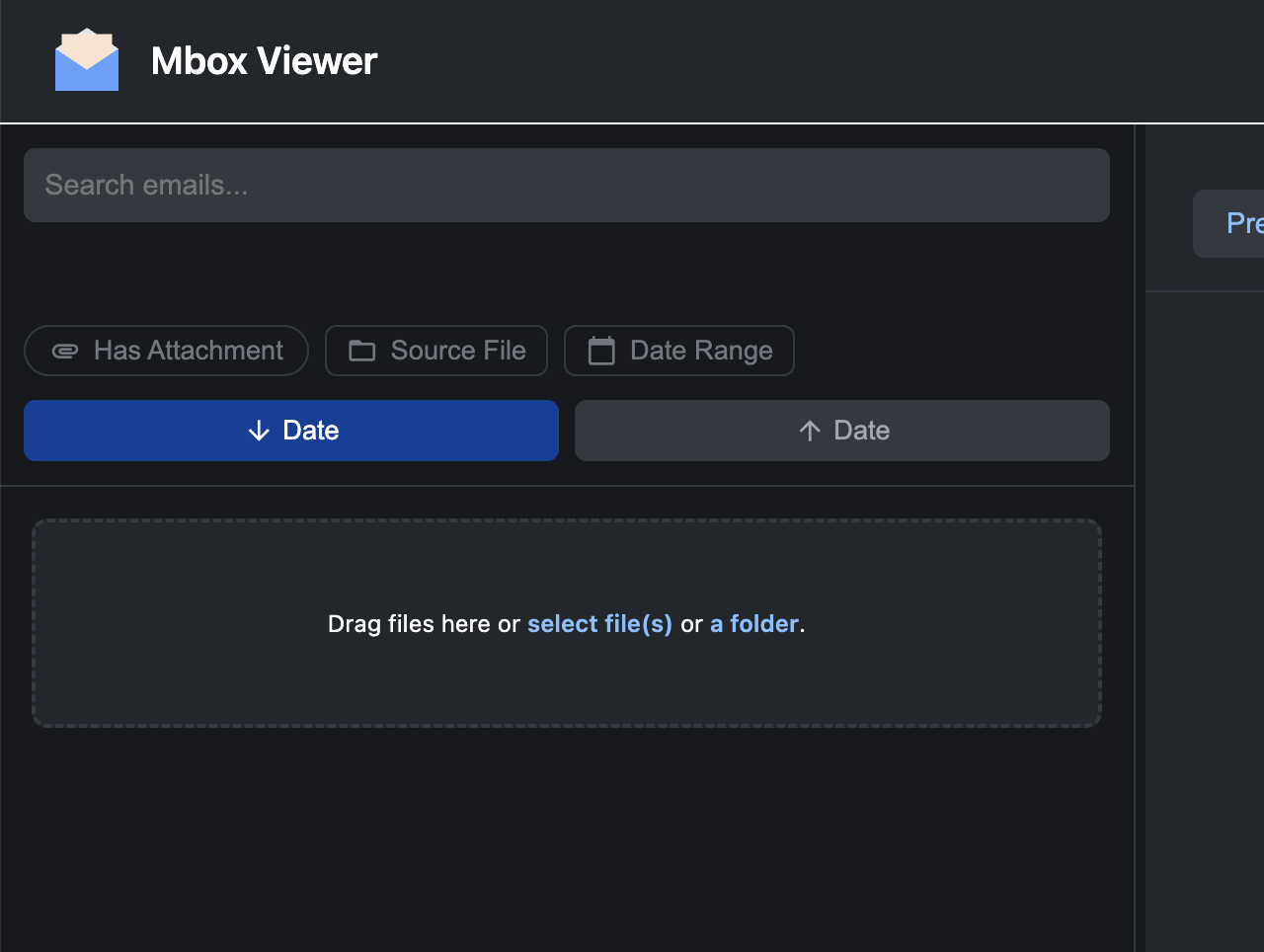
Screenshot of the Mbox Viewer dropzone
2

Browse and Search

Your emails appear in a clean, intuitive interface. Use the powerful search bar to instantly find what you're looking for across thousands of messages.
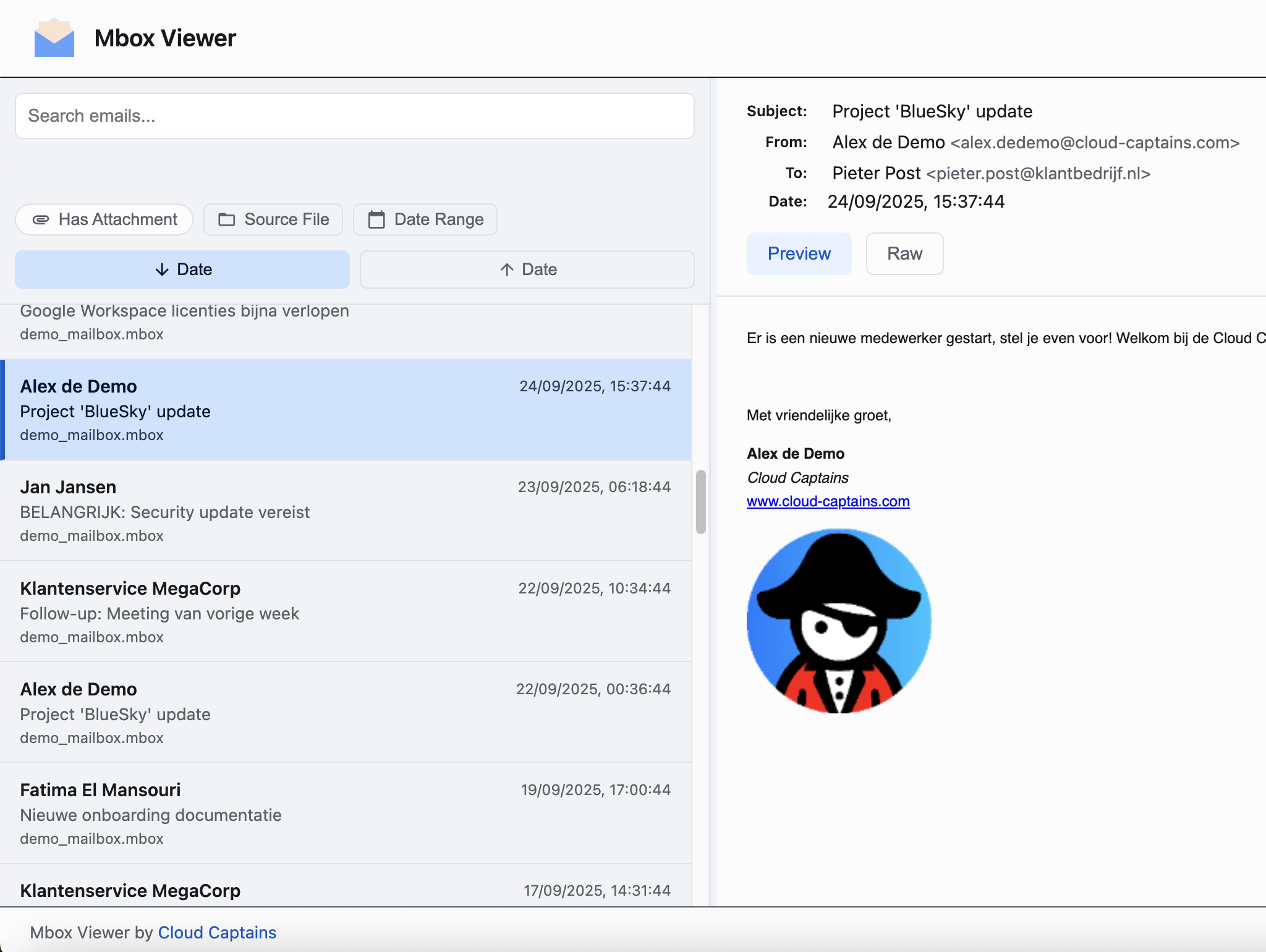
Screenshot of the Mbox Viewer interface
3

Filter, View, and Export

Click on any email to view it in full. Use advanced filters for date ranges or attachments, and export important emails as `.eml` or `.pdf` files.
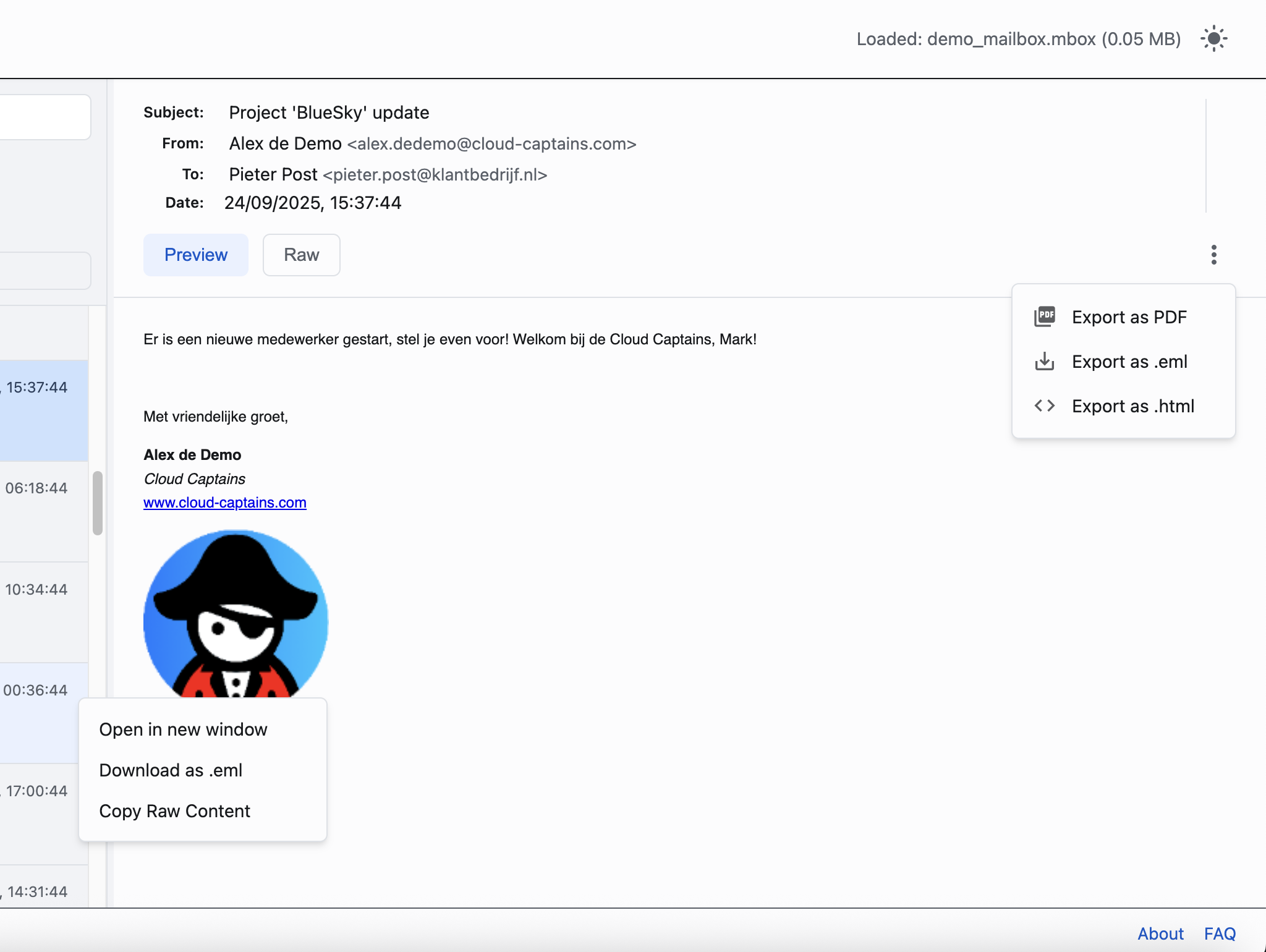
Screenshot of an email in Mbox Viewer

A Full-Featured Email Toolbox

Everything you need to manage your email archives, built with privacy as the priority.

security

100% Private & Offline

All processing happens in your browser. Your files are never uploaded, ensuring complete data privacy.

speed

Blazing Fast Performance

Engineered to handle large Mbox archives (multi-gigabyte) without freezing your browser.

filter_alt

Advanced Search & Filter

Instantly find emails by sender, subject, date, or content. Combine filters for precision searching.

dark_mode

Light & Dark Modes

Switch themes for comfortable viewing day or night. Your preference is automatically saved.

download

Multiple Export Options

Save individual emails as `.eml`, `.html`, or even print-ready `.pdf` files for archiving and sharing.

folder_zip

Multi-File & Folder Support

Drag and drop multiple `.mbox` files or an entire folder from Google Takeout at once.

code

Raw Source View

For technical users, inspect the complete, unaltered source code of any email, including all headers, with a single click.

verified_user

Email Security Insights

Instantly view the historical SPF, DKIM, and DMARC authentication results embedded in the email headers to verify sender authenticity.

attachment

Secure Attachment Handling

Easily see all attachments associated with an email. Download them securely to your local machine for safe viewing.

laptop_chromebook

Chromebook Optimized

Designed to be lightweight and efficient, making it the perfect Mbox viewer for ChromeOS and other resource-constrained devices.

storage

Dual-Mode Engine (v1.5)

Intelligently switches between memory mode for speed and database mode for stability with huge archives (25GB+ tested).

policy

Preserves Data Integrity

The application opens your Mbox files in read-only mode. It will never modify or alter your original archive files, ensuring their integrity.

new_releasesNow on Version 1.5

We've rebuilt the engine from the ground up for massive archives.

speed

Rebuilt Processing Engine

Experience significantly faster and more stable performance, especially with multiple or complex Mbox files.

storage

New Dual-Mode for Huge Files

The app now intelligently switches to a robust database mode for archives over 1GB, preventing browser crashes. We've tested it on files up to 25GB.

timer

Performance & Expectations

The app processes roughly 1 million emails every 5 minutes. When loading very large files, your browser may warn that the page is unresponsive. This is expected. Please click "Wait". The app has not crashed.

terminal

For the Nerds: Console Log

For the curious, open your browser's developer console (F12 or Ctrl+Shift+I) to see a detailed, real-time log of the import process, including speed and progress.

error_outline

Clear Error Codes

If something goes wrong, you'll see a specific code to help us diagnose issues much faster. Common codes include:

  • ERR-PARSE-001: File is likely corrupted.
  • ERR-DB-001: Browser database error.
  • ERR-PDF-001: Failed to generate PDF.

Latest From the Blog

Guides, tips, and solutions for all your Mbox needs.

Where to find your mbox files on windows, mac, & linux

can't find your thunderbird or apple mail mbox files? this guide reveals the hidden folder locations on windows, macos, and linux to help you locate your email archives.

November 30, 2025

Client-side mbox viewer showdown: our tool vs. goldfynch

both our viewer and goldfynch offer secure, client-side mbox viewing. but a critical difference emerges with large files: goldfynch's 512mb limit. discover why this makes our tool the superior free choice for google takeout archives.

November 27, 2025

Why is my mbox import failing in thunderbird? (the 5 common reasons)

struggling with a failed mbox import in thunderbird? this guide breaks down the 5 most common reasons, from hidden file size limits to incorrect file names, and shows a better way.

November 27, 2025

Your Questions, Answered

Getting Started

An Mbox file is a standard format for storing a collection of email messages. It is essentially a plain text file where emails are concatenated one after another. Services like Google Takeout and email clients like Thunderbird use this format to let you export and download your email data.

Go to Google Takeout, deselect all products, then select only "Mail". Follow the steps to create an export. Google will email you a link to a ZIP file. You must first unzip this file on your computer. Inside, you will find a `Mail` folder containing one or more `.mbox` files that you can drag into the viewer.

No. Mbox Viewer runs entirely in your web browser. There is no software to download or install on your operating system. However, we highly recommend installing our free Chrome Extension from the Chrome Web Store for the best performance and offline capabilities.

Yes. As long as the file ends in `.mbox` and follows the standard format (RFC 4155), our viewer can open it. This includes exports from Apple Mail.

Yes. Thunderbird uses the standard Mbox format. You can drag and drop your Thunderbird archive files directly into the viewer.

Yes, strict Mbox format Eudora files are supported. Some older versions may require conversion.

No. This tool is strictly for `.mbox` files. Outlook `.pst` files are a proprietary Microsoft format and cannot be opened here.

No. No account, no login, and no registration is required.

There is no hard limit programmed into the app. We have tested files up to 25GB. Performance depends on your computer RAM and CPU.

Technically yes, if your mobile browser supports the File API, but the interface and memory requirements are optimized for desktop use.

Click the toggle icon (Sun/Moon) in the top right corner of the navigation bar. Your preference is securely saved in your browser for your next visit.

Security & Privacy

Yes, it is 100% secure. This is our most critical feature. The tool is entirely client-side.

Nowhere. Your data never leaves your computer. It stays in your browser memory or local database.

Yes. You can load the page, turn off your Wi-Fi, and the tool will continue to work perfectly. This proves no data is being sent.

We use minimal cookies for analytics (if accepted) and settings (like Dark Mode preference). We do not use cookies to track your email content.

Never. The application opens your Mbox files in read-only mode.

Only in your browser local IndexedDB if you are using Database Mode for large files. This is sandbox-protected by your browser and we cannot access it remotely.

Simply close the tab or click the "Reset" / "Clear Data" button if visible. Browser data clearing also wipes it.

Absolutely not. We have no access to your data, so we have nothing to sell.

The core parsing engine logic is visible via "View Source" as it is client-side JavaScript.

We track anonymous usage stats like "File Loaded", "Error 001 Occurred" to fix bugs. No personal info is attached.

File Loading & Management

Drag and drop the file into the dropzone, or click the box to open the file picker.

Yes, you can select multiple `.mbox` files and drop them together.

You must unzip it first. We cannot process zipped archives directly.

Memory Mode loads the file into RAM. It is fast but limited by your available system memory (usually max 1-2GB).

Database Mode streams emails into IndexedDB. It is slower to start but allows files of unlimited size (10GB, 20GB, 50GB).

This is the one-time process of indexing your emails for the large file mode.

Give it a moment. If it is truly stuck for >5 minutes, check the browser console for errors.

No, the parsing process must complete in one go.

This may interrupt the parsing process. It is best to keep the computer awake for huge files.

In Chrome and Edge, yes. You can drop a folder containing mbox files.

Viewing & Searching

Type in the search bar at the top. It filters From, To, and Subject instantly.

Currently it supports simple string matching. Regex support is planned for v2.0.

Yes, click the "Date" column header to toggle ascending/descending.

Yes, click the "From" column header.

Yes, open the Filter menu to select Start and End dates.

Toggle the "Has Attachments" switch in the filter menu.

This usually means the email body was empty or in a format we could not parse (like proprietary binary blobs).

Yes, we render the HTML part of multipart messages by default.

Yes, if no HTML is found, we show the text/plain part.

External images are blocked by default for privacy. Remote servers cannot track you this way.

Open an email and click the "Code" icon (</>) in the toolbar. This opens a modal showing the full, unaltered RFC 822 source code of the message.

These indicate email authentication status found in the headers. A Green Shield means the sender Identity (SPF/DKIM) passed validation. A Red Warning suggests the email might be spoofed or unverified.

Attachments & Exports

Click the download icon next to the attachment name in the email detail view.

Not yet. You must download them individually in this version.

We act as a passthrough. If the attachment contained a virus, downloading it saves that virus to your PC. Use your antivirus.

Click the 3-dot menu > Export to PDF.

Click the 3-dot menu > Export to EML.

Click the 3-dot menu > Export to HTML.

We recommend exporting to PDF first, then printing the PDF for best formatting.

It is a single email message file format compatible with almost all email clients.

Complex CSS or external fonts in the email can sometimes break the PDF generator. Try HTML export instead.

No, this is a viewer/extractor, not an editor. You already have the specific Mbox file.

Technical Troubleshooting

Parsing error. The file is corrupt or not an mbox file.

Database error. Your browser is likely in Private mode or disk is full.

Out of Memory. The file is too big for Memory Mode. Switch to Database Mode (automatic for >1GB) or use a 64-bit browser.

Click "Wait" on the unresponsive warning. It is processing massive data.

Your disk is full or the browser has reached its storage limit for this site.

Firefox does not support the high-performance File System Access API streaming as well as Chrome.

Safari has stricter memory limits and slower IndexedDB performance.

Browsers throttle background tabs. Keep the tab focused for fastest processing.

Press F12 to open DevTools > Console to see technical logs.

Use the contact form below and include the error code and browser version.

Platform Specifics

Yes, fully supported on Chrome, Edge, and Firefox.

Yes, fully supported. Works great on M1/M2/M3 chips.

Yes, Chromium on Linux works perfectly.

Yes, it is the best option for Chromebooks.

Limited support via Safari. Large files may crash due to iOS memory limits.

Yes, via Chrome for Android, but screen size makes it hard to use.

Need Assistance?

Follow the steps below to submit a support request or question.

1. What is your inquiry about?

2. Please describe your request

3. Your Contact Details

4. Summary

check_circle

Request Sent!

Thank you. We have received your request. A confirmation has been sent to your email address.

Your Ticket ID is: